


AI Pulse: How Camp Pros Can Start Using Google's AI Tools: No New Platforms Needed
- Matthew Kaufman

- Dec 13, 2025
- 6 min read
Starting your AI journey doesn't require learning entirely new platforms or overhauling your tech stack. Google has been quietly integrating powerful AI features into tools you already use every week: Gmail, Docs, Sheets, Drive, Meet, and NotebookLM.
You don't need new platforms to start. You need clear use cases and simple routines.
Today's focus is on six Google AI applications at the "application layer." These are tools you touch regularly. Your team knows them. AI sits on top and helps you move faster and think more clearly.
Let's explore how camp professionals can leverage these familiar tools to streamline operations, improve communication, and make better decisions.
Gemini App as Your General Assistant
Think of Gemini as your "first stop" for ideas and drafts before you move into Docs, Sheets, or Slides. The Gemini app serves as Google's AI assistant in web, Android, and iOS form, supporting writing, planning, and problem-solving through natural conversation.
How camp professionals use it:
Turn messy brain dumps into clear project plans. Paste notes about buses, staggered arrivals, parking, and staff positions, then ask for a stepwise arrival plan with timestamps and roles.
Draft first versions of policies. Need a cell phone policy for counselors? Ask Gemini to create a framework, then customize it for your camp culture.
Transform parent FAQs into web copy. Paste a list of common questions from email and ask Gemini to group them into sections with clear, friendly answers.
Practical tip: Create one "Camp Planning" chat thread and keep using it. Gemini will refer back to prior answers and stay in context. Always treat outputs as first drafts, not final decisions.

Gemini in Gmail and Docs for Communication
Gemini is moving into Gmail and Docs through "Help me write," summaries, and Q&A features. In Gmail, you'll find email summaries, smart replies, and Gmail Q&A. In Docs, Gemini helps you write, refine, and summarize documents.
Parent communication made easier:
Your inbox fills up in spring with complex parent questions. Use Gemini to draft initial responses, adjust tone for empathy and clarity, and shorten long replies without losing important content. Open a lengthy parent email, use Gemini's "summarize" or "help me write a reply" features, then edit any details around policies before sending.
Staff communication that actually gets read:
Staff often skim long seasonal updates and miss details. Use Gemini in Docs to draft handbook sections from bullet notes, rephrase policies in simple language, and create short summaries at the top of long documents.
Neutral incident documentation:
When documenting incidents, you want clean, factual language without emotional overtones. Use Gemini to take a counselor's narrative and rewrite it in neutral, professional terms while keeping timestamps, quotes, and actions clear.
Practical tip: Keep one "source of truth" Doc for each major topic, like "Summer 2026 Parent Communication Templates." Use Gemini inside that Doc to suggest variations for different scenarios.
Gemini in Sheets for Enrollment and Staffing Data
Gemini in Google Sheets helps summarize, analyze, and visualize data. It creates charts, highlights trends, and answers questions about ranges directly in your existing spreadsheets.
Enrollment tracking made smarter:
Ask Gemini to summarize total enrollment by division and session, flag groups over capacity, and build charts showing enrollment trends week by week. Try prompts like "Summarize enrollment by division and grade" or "Highlight groups with more than 16 campers."
Waitlist management that makes sense:
For long waitlists, use Gemini to rank campers by your priority rules, group siblings, and identify grades or sessions where you should add capacity. Ask: "Based on this waitlist, group siblings, then sort by grade, then by timestamp of waitlist entry, and output a recommended call order."
Staff scheduling optimization:
Check adult-to-child ratios, spot days where coverage looks thin, and suggest where to move float staff. Use prompts like "Show me all periods where groups have fewer than two staff assigned."
Practical tip: Start with one important sheet, like "Summer 2026 Enrollment Master." Use Gemini for quick questions instead of building complex formulas.

Gemini in the Workspace Side Panel Across Drive
Google's newest Gemini integration appears in the side panel of Docs, Sheets, Slides, and Drive. It uses context from your documents and emails to summarize, analyze, and generate content without leaving your current file. This turns Drive into a searchable, conversational knowledge base.
Answer questions from years of files:
Instead of hunting through folders of past parent newsletters, staff training decks, incident logs, and survey results, ask Gemini directly. Open a staff training Doc and ask: "List the top five behavior management strategies we've used in the past three years."
Prepare for board meetings effortlessly:
Need enrollment trends, revenue summaries, and program highlights? Open a relevant Sheet or Doc, then ask in the side panel: "Extract three key points about enrollment trends over the past five years from this folder of reports."
Build new documents from scattered content:
Have strong content spread across old files? Open a blank Doc and ask: "Using last year's waterfront manual and safety memo in Drive, draft a new 2026 version in one document."
Practical tip: Organize Drive into clear folders first. Name folders in ways Gemini understands, like "2024 Parent Surveys" or "Staff Training Decks."
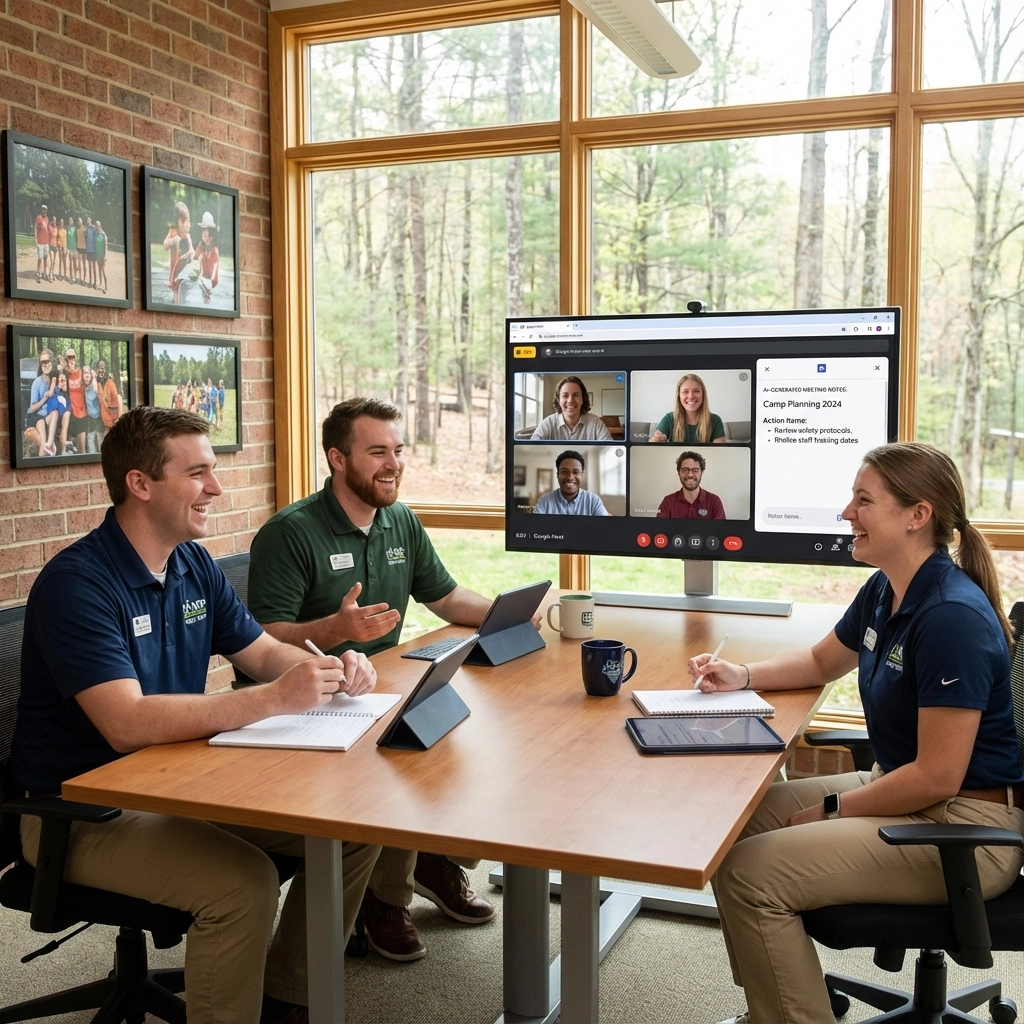
Meet AI Notes and Recaps
Google Meet now offers AI support for meeting notes and recaps, including automatic capture into Docs, summaries during calls, and recap links shared after meetings.
Leadership team meetings run smoother:
AI notes remove the need for someone to type everything during meetings with assistant directors, division heads, and operations staff. Enable AI notes for key meetings, confirm the focus in your Calendar event, then use the recap Doc's summary and action items to assign tasks in your project system.
Staff interviews and reference calls stay organized:
When speaking with many candidates and references, details blur together. Use AI notes to capture main points, record strengths and concerns, and store summaries in each candidate's folder.
Vendor calls become actionable:
Let AI notes capture price points, contract terms, open questions, and deadlines from meetings with bus companies, food providers, and software vendors. Share the recap with partners on your team.
Practical tip: Use AI notes for higher-stakes meetings, not every quick check-in. Edit action items immediately after calls to match your internal language.
NotebookLM as Your Camp Research Room
NotebookLM is Google's AI research and note-taking tool. Upload PDFs, Docs, Slides, and websites, then ask questions, generate outlines, and produce summaries that stay grounded in those sources.
For camps, this solves a big problem: you hold long, dense documents like state regulations, insurance policies, medical protocols, staff manuals, and accreditation standards. Most directors never have time to re-read them all.
Create focused research spaces:
Build a "Safety and Regulations Notebook" with state youth camp regulations, ACA standards, and your internal safety manual. Ask: "List all supervision ratio requirements by age group and activity from these sources" or "Where do our internal rules look weaker than state or ACA standards?"
Improve staff training with data:
Create a "Staff Training Notebook" with last summer's training schedule, session slides, written evaluations, and notes on week-one problems. Ask: "Based on these sources, list gaps staff noticed in training last year" or "Draft a revised two-day training outline for group leaders."
Prepare for crisis communication:
Build a "Parent Communication and Crisis Notebook" with past crisis emails, media statements, and legal guidance. Ask: "Extract patterns from prior crisis emails. What tone and structure do we use?" or "Draft a template for a serious bus delay email to parents."
Practical tip: Create one Notebook per theme, not one giant Notebook. Give each clear sources and use questions that reference those sources specifically.
Your Three-Month Rollout Plan
Month 1: Personal Practice Focus on your own workflows. Use the Gemini app for planning and policy drafts. Turn on Gemini in Docs for staff memos and parent templates. Try Gemini in Sheets on one enrollment or budget file. Goal: learn how these tools behave in low-risk contexts.
Month 2: Small Team Pilots Pick two or three trusted leaders. Train them on Gemini in Docs and Sheets. Let one person own Meet AI notes for leadership meetings. Create one NotebookLM project around safety standards. Goal: identify clear wins and edge cases without broad rollout.
Month 3: Written Guardrails and Training Based on your pilot, write simple rules. Examples: no camper names or medical details in prompts; all AI-drafted communication gets human review before sending; only directors and assistant directors use NotebookLM for legal content. Run a one-hour training for leadership staff before summer.
Key Mindset for Success
Treat Google's AI application layer as a set of helpers for drafting text, understanding long documents, summarizing meetings, and asking questions about your own data.
You still make the decisions. You still set policy. You still lead your people.
The tools lower friction on thinking and communication so you spend more time on what matters most: campers, staff, and program quality. At camp, we help kids develop problem-solving skills and learn to use technology thoughtfully. This same principle applies to how we integrate AI into our operations; we use it as a tool to enhance our human capabilities, not replace them.
Want more insights on youth leadership and camp innovation? Follow along at www.ilove.camp and connect with me on Instagram (@MattLovesCamp) and LinkedIn for daily updates from the camp world.


Comments